Managing compute
There are several self-service options for managing an ICDS paid compute account, including adding and removing users or coordinators, creating child accounts, and setting credit usage limits.
Account roles
Individuals can be added to compute accounts with two different roles - users and coordinators. These roles are mutually exclusive - coordinators do not need to be users.
| Role | Permissions |
|---|---|
| User | Can use the account resources for running jobs |
| Coordinator Only | Can add and remove users and coordinators from the account |
| Coordinator | Can use the account resources for running jobs Can add and remove users and coordinators from the account |
When a new compute account is created, the account owner is automatically added and granted coordinator access. As coordinator, they can add and remove other users and coordinators.
Credit accounts
To manage credit accounts, coordinators can either use the graphical
Slurm Account Manager found on the Portal
or the command line utility my_account.
my_account CLI
Manage users and coordinators
Account coordinators can add users and coordinators using my_account add. Use the arguments
user= and coordinator= to indicate the role you wish to assign
my_account add account=<child_crch_account> user=<userid> coordinator=<userid>
To remove users, my_account remove can be used
my_account remove account=<child_crch_account> user=<userid> coordinator=<userid>
Inherited coordinators cannot be removed from child accounts
Child accounts automatically inherit all of the coordinators from the parent account. These inherited coordinators cannot be removed while they remain coordinators of the parent account.
Create and manage child accounts
Credit accounts can serve as parents to one or more child accounts, allowing the balance credits in the parent account to be shared with the child accounts.
Child account names take the form of <prefix>_crch_<suffix> where the prefix is set to that
of the parent account. Child accounts can have custom suffixes but must inherit the prefix
of the parent account.
For example, for a parent account named research_cr_default, the child account
research_crch_professor1 is valid where research2_crch_default is not.
Child accounts can be created using my_account create.
my_account create account=<child_crch_account> parent=<parent_cr_account>
Users and coordinators can be added at the same time the child account is created, by also
including the user= and coordinator= arguments.
my_account create account=<child_crch_account> parent=<parent_cr_account> user=<userid>
coordinator=<coordid>
Setting usage limits
The available balance of credits can be set for individual users or child accounts. These limits are completely independent of the total credits available in the account.
It is possible to over-allocate credits
Available credit limits just limit how many credits can be used by an individual user or account. They are not bound by the available credits, and it is possible to allow more available credits than is actually in the parent account.
To set limits, my_account set is used with the available= argument to set the current
level of available credits for the entire account. Please note account limits can only be set
on accounts by coordinators of the parent account.
my_account set available=n account=<child_crch_account>
where n is the desired available balance in the child account.
To set limits for specific users, the user= argument is used. When a single ID or a list
of comma-separated IDs is passed, the limit will be set for all of the specified users.
my_account set available=n account=<child_crch_account> user=<userid>
Using user=all will set the individual limit for all users in the account.
my_account set available=n account=<child_crch_account> user=all
my_account set will also accept relative available limit changes using the +n or -n
notation. For example, adding 50 credits to all account users' available limit would use
this command.
my_account set available=+50 account=<child_crch_account> available=+50 users=all
Slurm Account Manager
To access the Slurm Account Manager, connect to the Portal and then select "Account Manager" from the "Clusters" menu.
Manage users and coordinators
Adding users or coordinators
To add users or coordinators, locate the account in the list and click the [+] to expand the details.
Under "Add Users(s) or Add coordinators", enter the Penn State Access ID in the text box(1) and click "Add User"(2) or "Add Coordinator"(3) as desired.

Add multiple people at once
The form will accept a list of comma-separated IDs, allowing you to enter several people in a single step.
Grant coordinator access
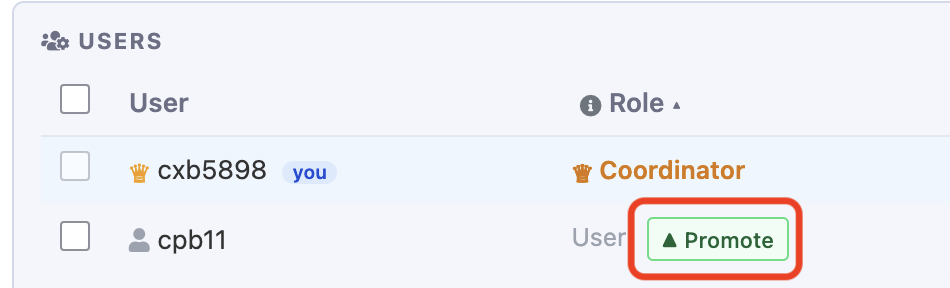
To change permissions of an existing individual, you can click the buttons next to their entry in the list of Users. To grant a user the role of Coordinator, click "Promote".
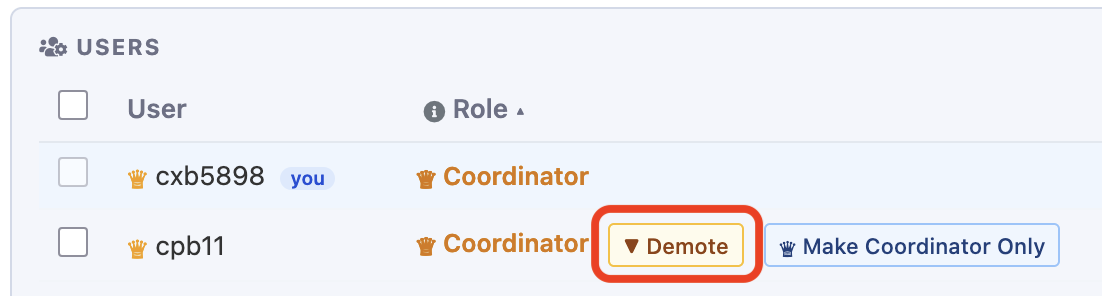
Alternately, to remove Coordinator permissions but continue to allow access as a user, click "Demote"(1). Clicking "Make Coordinator Only"(2) removes only user permissions while maintaining access as a Coordinator.
Removing users and coordinators
To remove all access, select users to remove by clicking the checkbox next to their ID(1) and clicking the "Remove Selected Users" button(2).

Inherited coordinators cannot be removed from child accounts
Child accounts automatically inherit all of the coordinators from the parent account. These inherited coordinators cannot be removed while they remain coordinators of the parent account.
Create child accounts
Credit accounts can serve as parents to one or more child accounts, allowing the credits in the parent account to be shared with the child accounts.
Child account names take the form of <prefix>_crch_<suffix> where the prefix is set to that
of the parent account. Child accounts can have custom suffixes but must inherit the prefix
of the parent account. For example, for a parent account named research_cr_default, the child account
research_crch_professor1 is valid where research2_crch_default is not.
To create a child account, click the "Add Child" button located next to the top of the account detail box.

Enter the desired suffix in the text box(1) and if desired, the Penn State Access ID for any users(2) and coordinators(3) to be added to the child account. Then click "Create"(4).

Once the child account is created, additional users and coordinators can be added and credit usage limits can be set as well.
Setting available balance
The available balance of credits can be set for individual users or child accounts. These limits are completely independent of the total credits available in the account.
It is possible to over-allocate credits
Available credit limits just limit how many credits can be used by an individual user or account. They are not bound by the available credits, and it is possible to allow more available credits than is actually in the parent account.
Available credit balances can be set using the "Set Credit Usage Limits" box. Enter the desired credit amount in the box(1) and select how you want the limit applied. For individual user limits, click the checkbox before each target user and choose the "Selected users"(2) option.
For account level limits, choose "Account"(2). Please note account limits can only be set on accounts by coordinators of the parent account. Then click "Set"(3) to activate.

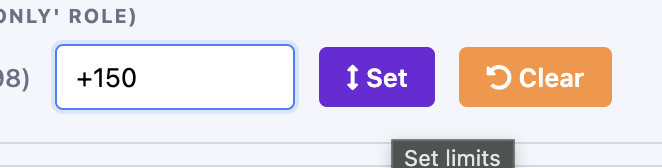
Available limits can also be set relative to current levels using a +n or -n entry. For example, to set the available limit 100 credits higher than the current limit, +100 can be entered in the limit field.
Reserved allocations
Reserve allocations can use the my_account utility in a shell session
either through the Portal or an
SSH connection to add and remove users or coordinators.
Monitoring available balance
get_balance displays current balances for credit accounts and allocations.
For help, use get_balance --help.
Request only the hardware you need.
Jobs paid by credit accounts are charged for requested hardware, whether or not it is used.